` with attributes in HTML output,
e.g.,
``` html
```
For LaTeX output, it can be converted to a LaTeX environment if both the class
name and an attribute `data-latex` are present. For example,
``` markdown
::: {.tiny data-latex=""}
This is _tiny_ text.
:::
```
will be converted to:
``` latex
\begin{tiny}
This is \emph{tiny} text.
\end{tiny}
```
### Cross-references
To cross-reference an element, it must be numberd first. For section headings,
the numbers are automatically generated if the `number_sections` option is true.
For example, see @sec-citations.
For figures, these anchors are automatically generated if the chunk options
`fig.cap` (figure caption) or `fig.env` is not empty, e.g., the code chunk below
produces @fig-nice-plot.
```{{r}}
#| nice-plot, fig.cap="OMG, I felt like crying when I drew this plot in Auckland! It has been almost two decades since I first learned R and knew this volcano.", fig.height=5
par(mar = c(4, 4, 1, .5))
filled.contour(volcano, color.palette = terrain.colors)
```
Similarly, you can reference tables, e.g., @tab-nice-table.
```{{r}}
#| nice-table, tab.cap="This is your familiar `mtcars` dataset. Note that data frames are printed to tables by default.", print.args=list(data.frame=list(limit=c(6, 10)))
mtcars
```
By default, tables are truncated to 10 rows (to avoid generating huge tables by
accident), but this is configurable.
If you really want the "console output" for data frames, you can get it, too:
```{{r}}
#| print=xfun:::record_print.default
head(mtcars)
```
### Citations
This feature requires the R package **rbibutils**. Please make sure it is
installed before using citations.
``` r
xfun::pkg_load2("rbibutils")
```
To insert citations, you have to first declare one or multiple bibliography
databases in the YAML metadata, e.g.,
``` yaml
bibliography: ["papers.bib", "books.bib"]
```
Each `.bib` file contains entries that start with keywords. For example,
`R-base` is the keyword for the following entry:
``` plain
@Manual{R-base,
title = {R: A Language and Environment for Statistical Computing},
author = {{R Core Team}},
organization = {R Foundation for Statistical Computing},
address = {Vienna, Austria},
year = {2024},
url = {https://www.R-project.org/},
}
```
Then you can use `[@R-base]` or `@R-base` to cite this item. You can include
multiple keywords in `[ ]` separated by semicolons.
### Smart HTML entities
"Smart" HTML entities can be represented by ASCII characters, e.g., you can
write fractions in the form `n/m`. Below are some example entities:
```{r, smartypants, echo=FALSE}
p = litedown:::pants[-(4:14)]
t(as.matrix(setNames(p, sprintf('`%s`', names(p)))))
```
## Code chunks and inline code
Global chunk options are controlled by `litedown::reactor()`, which is similar
to `knitr::opts_chunk$set()`, e.g.,
``` r
litedown::reactor(fig.width = 10, fig.height = 6)
```
Some quick examples:
```{r}
litedown::mark('Hello _world_!')
litedown::mark('Hello _world_!', 'latex') # litedown does support latex output
litedown::timing_data()
```
Inline R code expressions can have options, too, e.g.,
`` `{r, eval=FALSE, order=10} 1 + 1` ``.
## Adding CSS/JS assets
Via meta variables in YAML:
``` yaml
output:
litedown::html_format:
meta:
css: ["default", ...]
js: [...]
```
All CSS/JS assets below are very lightweight and not tied to **litedown** (i.e.,
you can use them on any other web pages).
### Article mode
``` yaml
css: ["@default", "@article"]
js: ["@sidenotes"]
```
Testing a footnote.[^1]
[^1]: In the article mode, footnotes will be moved to the margin if
`sidenotes.js` is used and the browser window is wide enough.
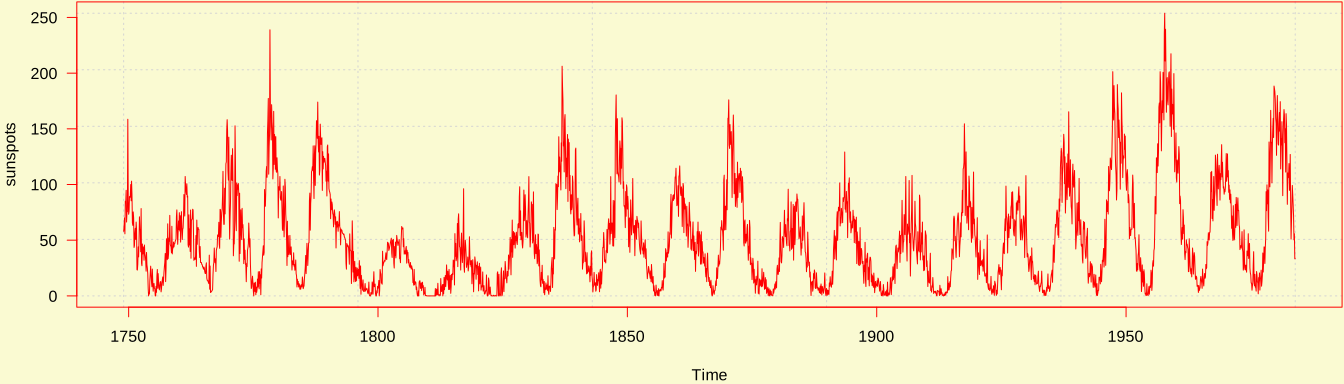
Testing a full-width image:
::: fullwidth
:::
### Slides mode
``` yaml
css: ["@default", "@snap"]
js: ["@snap"]
```
- Two modes: slides and article (depending on width and aspect ratio)
- You can't have your cake and eat it too? That's only true in Word and
PowerPoint.
- Keyboard shortcuts:
f (fullscreen),
o (overview), and
m (mirror slides).
### Tabsets
You can load the script `tabsets.js` and CSS `tabsets.css` to create tabsets
from bullet lists.
``` yaml
css: ["@tabsets"]
js: ["@tabsets"]
```
::: tabset
:::
- First tab
Hi, tab!
- Second tab
This is the initial active tab.
- Third tab
Bye, tab!
::: tabset
:::
- A child tabset
Content.
- Another tab
More content
### Code folding
``` yaml
js: ["@fold-details"]
```
### Callout blocks
A callout block is a fenced Div with the class name `callout-*`. Callouts
require `callout.css` and `callout.js`:
``` yaml
css: ["@callout"]
js: ["@callout"]
```
For example:
::: callout-tip
This is a tip.
> You can write arbitrary content, such as a blockquote.
::: callout-caution
Even another callout!
:::
::: callout-important
For the first time in your life, you have realized that you do not have to use
fontawesome for icons!
:::
Is that cool?
:::
### Right-align a quote footer
``` yaml
js: ["@right-quote"]
```
> You can use the script `right-quote.js` to right-align a blockquote footer if
> it starts with an em-dash (`---`).
>
> ---John Doe
### Add anchor links to headings
``` yaml
css: ["@heading-anchor"]
js: ["@heading-anchor"]
```
### Style keyboard shortcuts
``` yaml
css: ["@key-buttons"]
js: ["@key-buttons"]
```
`Esc` `Tab` `Enter` `Space` `Delete` `Home` `End` `PrtScr` `PrintScreen`
`PageUp` `PageDown` `Up` `Down` `Left` `Right`
`Ctrl` `Control` `Shift` `Alt` `Cmd` `Command` `fn`
`Ctrl / Cmd + C`
`Ctrl / Cmd + Alt + I`
`Shift + Enter`
`Cmd + Shift + 9`
`fn + F`
`Alt + Click`
### HTML pagination
``` yaml
css: ["@pages"]
js: ["@pages"]
```
Press
p for PDF, but that's less fun than my Simon/Paul bots.